Centralized File Management in a Multi-Web Server Architecture: NFSv4
One of the most critical bottlenecks when horizontally scaling enterprise SaaS and high-traffic web applications is ensuring that user-uploaded files remain simultaneously, consistently, and performantly accessible across all web servers. In this article, we share how HYZSOFT evaluated FTP, SFTP, Symlink/SSHFS, and NFSv4 for our multi-web server storage layer, the real-world production surprises we encountered (such as Systemd Mount Namespace isolation), and the secure cross-network architecture we built using id_rsa—in full technical detail.
1. Why Centralized File Storage Is Essential in a Multi-Web Server Architecture
On an application running on a single web server (Monolithic / Single-Node), file uploads are straightforward: a PDF contract, invoice image, or profile photo uploaded by a user is saved directly to the server’s local disk (for example, /var/www/vhosts/example-app.com/httpdocs/files) and served right back from that same disk.
However, as the application grows and multiple web servers (Web Server 1, Web Server 2, Web Server N) are placed behind a Load Balancer to handle higher traffic and guarantee High Availability, relying on local disks quickly turns into an architectural crisis.
The “State” Problem with Local Disks
- Synchronization Loss (404 Not Found Errors): When a user logs in, the Load Balancer routes the request to
Web Server 1. The user uploads a file, which is written toWeb Server 1‘s local disk. Seconds later, when the same user (or a colleague) tries to view the file, the Load Balancer routes the new request toWeb Server 2. Because the file does not exist onWeb Server 2‘s local disk, the application returns404 Not Found. - Two-Way Synchronization (Rsync / Unison) Complexity: Running periodic
rsyncjobs between servers introduces propagation delays for newly uploaded files, triggers conflicts during concurrent deletions or updates, and wastes storage by duplicating data across every node (N-times storage cost). - Horizontal Scaling (Auto-Scaling) Barrier: When provisioning a new
Web Server 3, waiting for terabytes of files to be copied to the new node makes rapid, elastic scaling impossible.
The Solution: Stateless Web Servers and Centralized Storage (Single Source of Truth)
The golden rule of modern cloud and enterprise software architecture is clear: Web servers must be completely “Stateless,” running only application code. Stateful data (databases, caches, and user files) must live in independent, centralized tiers.
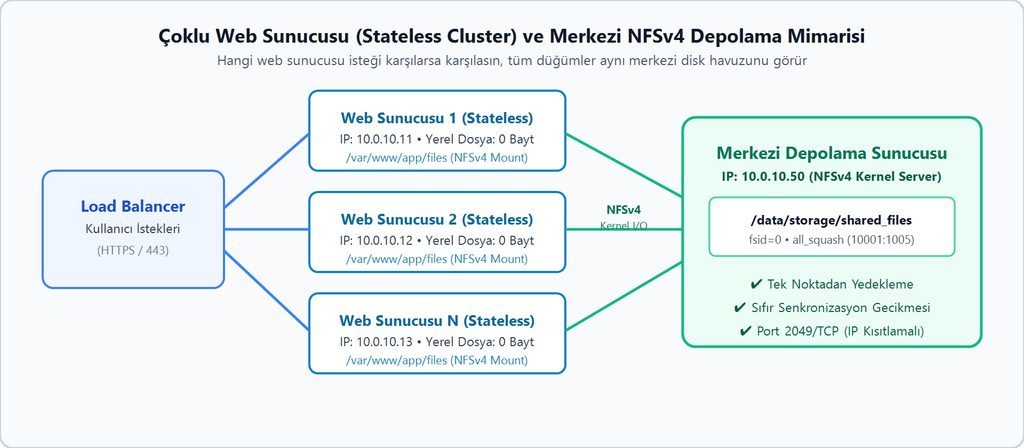
When files are consolidated on a centralized Storage Server:
- Regardless of which web server writes a file, every other web server can read it in the exact same millisecond.
- Backups, disk expansion, antivirus scanning, and access permissions are managed in one central place instead of across N separate servers.
- If any web server fails or a new one is added, zero data is lost; the new node simply mounts the central storage directory and joins the cluster in seconds.
2. Accessing Centralized Storage: Comparing FTP/SFTP, Symlink/SSHFS, and NFSv4
Once you decide to centralize file storage, three primary architectural approaches emerge. To make the right choice for our platform, we evaluated all three across performance, application code coupling, maintenance overhead, and operating system behavior.
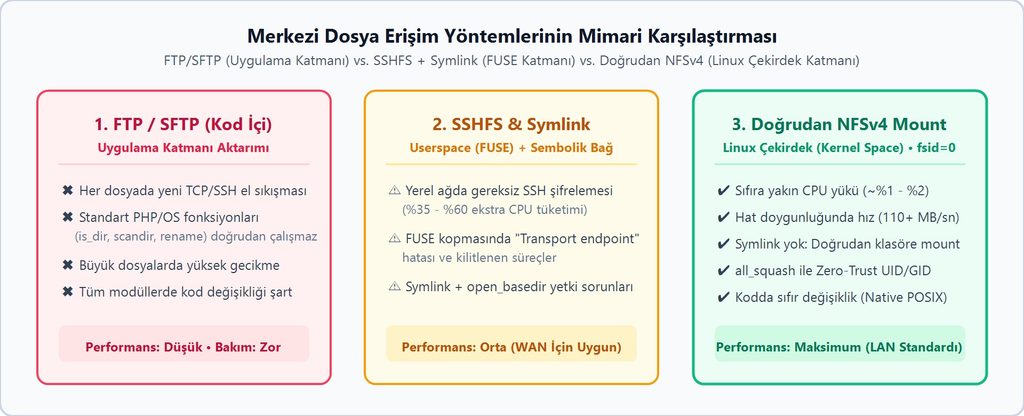
Method A: Application-Layer FTP / SFTP
In this approach, there is no OS-level mount between the web servers and the storage server. Application code (e.g., PHP) connects over the network via an FTP/SFTP library (ext-ftp, phpseclib, or Flysystem) for every upload, read, size check, or delete operation.
- Disadvantage 1 (High Latency / Handshake Overhead): Performing TCP and SSH/TLS handshakes on every HTTP request introduces substantial latency. Listing 20 files or checking thumbnails on a single page noticeably slows down the application.
- Disadvantage 2 (Standard Filesystem Functions Break): Standard functions such as
is_file(),is_dir(),filesize(),move_uploaded_file(),unlink(), and image processing libraries (GD / ImageMagick) cannot operate directly on remote paths. Files must be downloaded to a local temporary directory (/tmp), processed, and re-uploaded via SFTP. - Disadvantage 3 (Heavy Code Refactoring Cost): In an existing codebase with dozens of upload modules, every single module must be rewritten around SFTP APIs.
Method B: Mounting a Remote Directory with Symlinks (Symlink + SSHFS/FUSE)
Here, the remote directory is mounted to an external path on the web server such as /mnt/remote_storage (typically via FUSE-based sshfs), and a symbolic link is created inside the application directory (ln -s /mnt/remote_storage /var/www/.../httpdocs/files).
- Disadvantage 1 (Web Server & Security Restrictions): Nginx, Apache, Plesk, and cPanel frequently block symlinks pointing outside the document root (
httpdocs) due to security rules (SymLinksIfOwnerMatch,disable_symlinks, or PHPopen_basedirrestrictions). UID/GID mismatches routinely trigger403 Forbiddenerrors. - Disadvantage 2 (FUSE / User-Space Bottleneck): With
sshfs, every read/write call travels from Linux Kernel Space to User Space via FUSE and then through encrypted SSH processes. Under high concurrent I/O, CPU usage spikes, and network hiccups leave broken symlinks throwingTransport endpoint is not connected. - Disadvantage 3 (Realpath Deviations): Security checks that rely on
realpath()resolve the symlink to/mnt/..., which can break internal path validation logic.
Method C: Direct NFSv4 Mount on the Target Directory (Our Chosen Architecture)
With Network File System v4 (NFSv4), the shared export on the central storage server is mounted at the Linux Kernel (Kernel VFS) level directly onto the application’s file directory (/var/www/vhosts/example-app.com/httpdocs/files) without any symlinks.
- Zero Code Changes (100% Transparency): To PHP, Nginx, and Apache, the directory is indistinguishable from a local disk. Every standard filesystem function (
move_uploaded_file,scandir,filesize) works without changing a single line of code. - Kernel-Space Performance and Caching: NFSv4 runs directly inside the Linux kernel, leveraging aggressive Page Cache and
asyncwrites to deliver near-local disk performance. - Firewall-Friendly: Unlike legacy NFSv3, it requires no
rpcbindor random ephemeral ports—operating statefully over a single standard port (TCP 2049).
Comparison Summary
| Criterion | FTP / SFTP (Application Layer) | SSHFS + Symlink (FUSE Layer) | Direct NFSv4 Mount (Kernel Layer) |
|---|---|---|---|
| Performance & Latency | Low (Session and transfer overhead on every operation) | Medium (User-space FUSE and SSH encryption overhead) | Very High (Direct Kernel VFS and page cache) |
| Application Code Changes | High (All I/O must be rewritten with an SFTP SDK) | Low (Prone to realpath and open_basedir issues) | Zero (Behaves identically to a local disk) |
| Web Server (Apache/Nginx) Compatibility | Static files cannot be served directly (Proxy required) | Risk of symlink ownership/permission (403 Forbidden) errors | Fully Compatible (Mounted directly on the target path) |
| File Locking | None (Must be managed at the application layer) | Limited | Built-in (Stateful NFSv4 lease-based locking) |
| Ideal Use Case | Low-frequency external backups / transfers | Convenient encrypted access across networks (WAN) | Same Data Center / Private Network (LAN/VLAN) Cluster |
3. How We Implemented NFSv4 (Step-by-Step Setup & Production Fixes)
When designing the architecture, we ensured all servers communicate over a Private LAN following the Principle of Least Privilege. Below is the exact production configuration we deployed, with anonymized server and network details.
Infrastructure & Server Inventory (Anonymized)
- Central Storage Server (NFSv4 Server):
- Private LAN IP Address:
10.0.10.50 - Physical Storage Directory:
/data/storage/shared_files - NFSv4 Pseudo-Root Directory:
/srv/nfs4/shared_files - File Owner User / Group (UID:GID):
webuser:psacln(10001:1005)
- Private LAN IP Address:
- Web Application Servers (NFSv4 Clients):
- Web Server 1 IP:
10.0.10.11 - Web Server 2 IP:
10.0.10.12 - Application Target Mount Point:
/var/www/vhosts/example-app.com/httpdocs/files
- Web Server 1 IP:
Step 1: Preparing the NFSv4 Pseudo-Root and Permissions on the Central Server (10.0.10.50)
For security, rather than exposing the entire filesystem hierarchy, NFSv4 uses a virtual root directory (Pseudo-Root) marked with fsid=0. We attached our physical storage directory inside this pseudo-root using a bind mount:
# 1. Install NFS server packages (Ubuntu/Debian)
sudo apt update && sudo apt install -y nfs-kernel-server

# 2. Create physical storage and NFSv4 pseudo-root directories
sudo mkdir -p /data/storage/shared_files
sudo mkdir -p /srv/nfs4/shared_files

# 3. Assign ownership (UID: 10001, GID: 1005) and directory permissions
sudo chown -R 10001:1005 /data/storage/shared_files
sudo chmod -R 2775 /data/storage/shared_files

# 4. Bind mount the physical directory into the NFSv4 pseudo-root
sudo mount --bind /data/storage/shared_files /srv/nfs4/shared_files
To make the bind mount persistent across reboots, we added the following line to /etc/fstab on the central server:
/data/storage/shared_files /srv/nfs4/shared_files none bind 0 0Step 2: UID/GID Normalization (all_squash) and /etc/exports Configuration
One of the most common pitfalls in multi-web server clusters is that PHP-FPM users on different web nodes may have different UID/GID values. To eliminate this at the root, we configured all_squash, anonuid=10001, and anongid=1005 on the central server. Regardless of which web server or user writes a file, it is always saved on the central disk with consistent 10001:1005 (webuser:psacln) ownership.
Our /etc/exports configuration on the central server:
# /etc/exports - Restricted strictly to authorized Web Servers (10.0.10.11 and 10.0.10.12)
/srv/nfs4                10.0.10.11(rw,sync,fsid=0,crossmnt,no_subtree_check,all_squash,anonuid=10001,anongid=1005)
                         10.0.10.12(rw,sync,fsid=0,crossmnt,no_subtree_check,all_squash,anonuid=10001,anongid=1005)

/srv/nfs4/shared_files   10.0.10.11(rw,async,no_subtree_check,all_squash,anonuid=10001,anongid=1005)
                         10.0.10.12(rw,async,no_subtree_check,all_squash,anonuid=10001,anongid=1005)
Next, we restricted TCP port 2049 in the firewall (UFW) so that only our Web Servers’ IP addresses can connect:
sudo exportfs -ra
sudo ufw allow from 10.0.10.11 to any port 2049 proto tcp
sudo ufw allow from 10.0.10.12 to any port 2049 proto tcp
Step 3: Preventing Malicious Script Execution in Shared Storage (.htaccess Hardening)
Because the user upload directory resides directly under httpdocs/files, preventing an attacker from uploading and executing a .php or .phtml web shell in the event of an application vulnerability is essential. We placed an .htaccess file in the root of the shared directory to disable script execution completely:
# /data/storage/shared_files/.htaccess
<IfModule mod_php.c>
    php_flag engine off
</IfModule>
<IfModule mod_php7.c>
    php_flag engine off
</IfModule>
<IfModule mod_php8.c>
    php_flag engine off
</IfModule>

<FilesMatch ".(php|phtml|php3|php4|php5|php7|php8|phps|phar|pl|py|cgi|sh)$">
    Require all denied
</FilesMatch>
Options -ExecCGI -Indexes
Step 4: Mounting on Web Servers (10.0.10.11 & 10.0.10.12) and the “Ghost File” Surprise!
After installing nfs-common and mounting the share on the web servers, we thought we were done. Then we ran into a fascinating real-world production surprise:
The Surprise We Encountered (Systemd Mount Namespace Isolation):
From an SSH terminal,df -hshowed the NFSv4 share mounted cleanly. Yet whenever a file was uploaded through the web application, it did not land on the central storage server—it was being written to the web server’s local disk as if the NFS mount didn’t exist! Even stranger, runningls -lafrom the terminal didn’t show the file, yet the web browser could open it!
Root Cause: On modern Linux distributions and control panels like Plesk/cPanel, php-fpm and apache2 services launch with PrivateTmp=true in their systemd unit files for security. That directive creates an isolated copy of the system’s Mount Table (a Mount Namespace) at the moment the service starts. If you manually mount an NFSv4 share while php-fpm is already running, the host OS sees the new NFS mount, while php-fpm keeps writing to the old underlying local directory inside its isolated namespace!
The Definitive Fix: We added systemd boot-ordering dependencies (x-systemd.before) to /etc/fstab on the web servers so that on boot, the NFSv4 mount is established first, and PHP-FPM and the Web Server services start afterward:
# Web Servers (10.0.10.11 and 10.0.10.12) /etc/fstab configuration:
10.0.10.50:/shared_files   /var/www/vhosts/example-app.com/httpdocs/files   nfs4   rw,relatime,vers=4.2,rsize=1048576,wsize=1048576,namlen=255,hard,proto=tcp,timeo=600,retrans=2,_netdev,nofail,x-systemd.automount,x-systemd.before=plesk-php82-fpm.service,x-systemd.before=apache2.service,x-systemd.before=nginx.service   0   0
After performing a manual mount, we also restarted the relevant services to guarantee every process shares the exact same Mount Namespace:
sudo systemctl daemon-reload
sudo mount -a
sudo systemctl restart plesk-php82-fpm apache2 nginx
4. Secure Cross-Network Access with id_rsa (SSH Keys)
Direct NFSv4 works brilliantly between servers inside the same data center or private VLAN (10.0.10.x). As architectures expand, however, an application node, reporting server, or Disaster Recovery server located in a different data center (another cloud provider or geographic region) may also need access to the central file store.
Critical Security Rule: Because NFSv4 traffic is unencrypted by default, exposing port 2049 directly to the public internet (WAN) is strictly discouraged. For secure cross-network file access and synchronization, we implemented an asymmetric cryptography architecture based on SSH Key Pairs (id_rsa / id_rsa.pub).
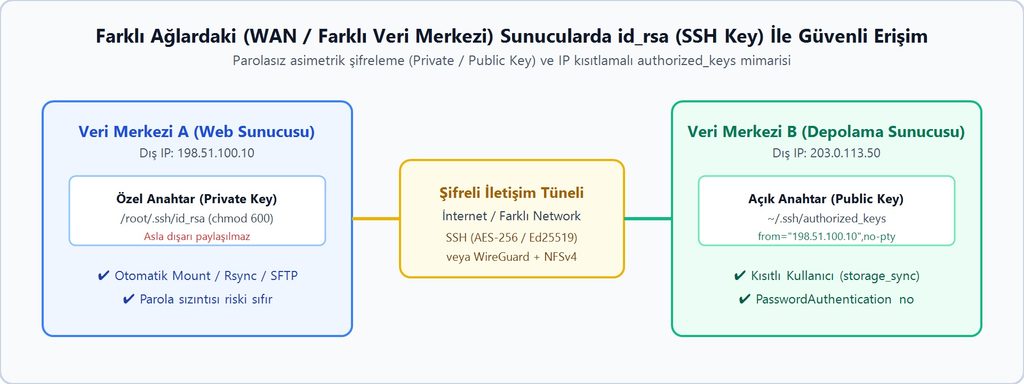
Scenario & Anonymized Server Details
- External Data Center Web Server:
198.51.100.10 - Central Storage Server (Public IP):
203.0.113.50(SSH Port:22) - Access User:
storage_sync(UID:10001, GID:1005— matching central file ownership)
Step 1: Generating a Passwordless RSA Key Pair on the Client Server (198.51.100.10)
To allow background services and automated mounts (fstab / cron) to connect unattended, we generated a 4096-bit passphrase-free id_rsa key pair:
# Run on the client server (198.51.100.10):
ssh-keygen -t rsa -b 4096 -C "web-node-wan@198.51.100.10" -f ~/.ssh/id_rsa -N ""

# Private key permissions must be strictly owner-readable only (600):
chmod 700 ~/.ssh
chmod 600 ~/.ssh/id_rsa
chmod 644 ~/.ssh/id_rsa.pub
Step 2: IP-Restricted authorized_keys Hardening on the Central Server (203.0.113.50)
Rather than simply appending the public key (id_rsa.pub) to /home/storage_sync/.ssh/authorized_keys on the central server, we applied SSH Key Hardening. By prefixing the key with from="198.51.100.10" and disabling forwarding, even if the private key were ever compromised, it cannot be used from any host other than 198.51.100.10:
# /home/storage_sync/.ssh/authorized_keys on the central server (203.0.113.50):
from="198.51.100.10",no-port-forwarding,no-X11-forwarding,no-agent-forwarding ssh-rsa AAAAB3NzaC1yc2EAAAADAQABAAACAQC7... web-node-wan@198.51.100.10
Step 3: Three Cross-Network Patterns Using id_rsa
With the SSH key infrastructure in place, three different connectivity models can be applied depending on the remote server’s workload:
1. Direct Encrypted Mount via SSHFS (Persistent /etc/fstab Configuration)
When an application server in another data center needs to see the central storage directly as a local folder, this sshfs entry encrypts all traffic over SSH (id_rsa):
# /etc/fstab (on 198.51.100.10)
storage_sync@203.0.113.50:/data/storage/shared_files   /var/www/vhosts/example-app.com/httpdocs/files   fuse.sshfs   _netdev,reconnect,ServerAliveInterval=15,ServerAliveCountMax=3,IdentityFile=/root/.ssh/id_rsa,allow_other,default_permissions,uid=10001,gid=1005   0   0
The reconnect and ServerAliveInterval=15 options ensure that even if there is a brief network blip between data centers, the mount automatically self-heals without dropping.
2. Disaster Recovery and Off-Site Backups via Rsync + id_rsa
To replicate terabytes of data from the central storage server to a remote backup node by transferring only changed blocks (delta-transfer) over an encrypted channel:
rsync -avz --delete -e "ssh -i /root/.ssh/id_rsa -o StrictHostKeyChecking=accept-new"
    storage_sync@203.0.113.50:/data/storage/shared_files/
    /backup/shared_files_mirror/
3. NFSv4 Over a WireGuard / IPsec VPN or SSH Tunnel
If native Kernel NFSv4 performance (instead of FUSE) is required on a server in another network, a WireGuard VPN tunnel is established between the two hosts using public/private keys. Virtual private IPs (e.g., 10.99.0.1 and 10.99.0.2) are assigned to the tunnel endpoints, and the exact NFSv4 setup from Section 3 runs unmodified over the encrypted tunnel.
Conclusion and Key Outcomes
By standardizing centralized file management across HYZSOFT’s multi-web server architecture with a hybrid NFSv4 and SSH (id_rsa) design, we achieved the following outcomes:
- Zero Code Complexity: Our engineering team continued using standard filesystem APIs instead of wrestling with FTP/SFTP libraries, with zero backward-compatibility regressions across existing modules.
- Seamless Horizontal Scaling: Adding a new web server to the cluster under peak load became as simple as adding a single line to
/etc/fstaband starting the services. - High Security & Isolation:
all_squashcompletely eliminated cross-server UID/GID permission mismatches,.htaccessrules blocked script execution inside the shared directory, and systemdx-systemd.beforedependencies permanently solved the “ghost file” (Mount Namespace) issue. - Flexible Multi-Network Support: Within the same data center we benefit from Kernel-level NFSv4 speed, while cross-network servers connect securely over an encrypted bridge using
id_rsaand IP-restrictedauthorized_keys.